Forgot Password
If you forgot your password or need to reset it, use the Forgot Password option on the ECF portal login page. Your account is not locked, and no clerk action is required for a standard password reset.
Reset your password
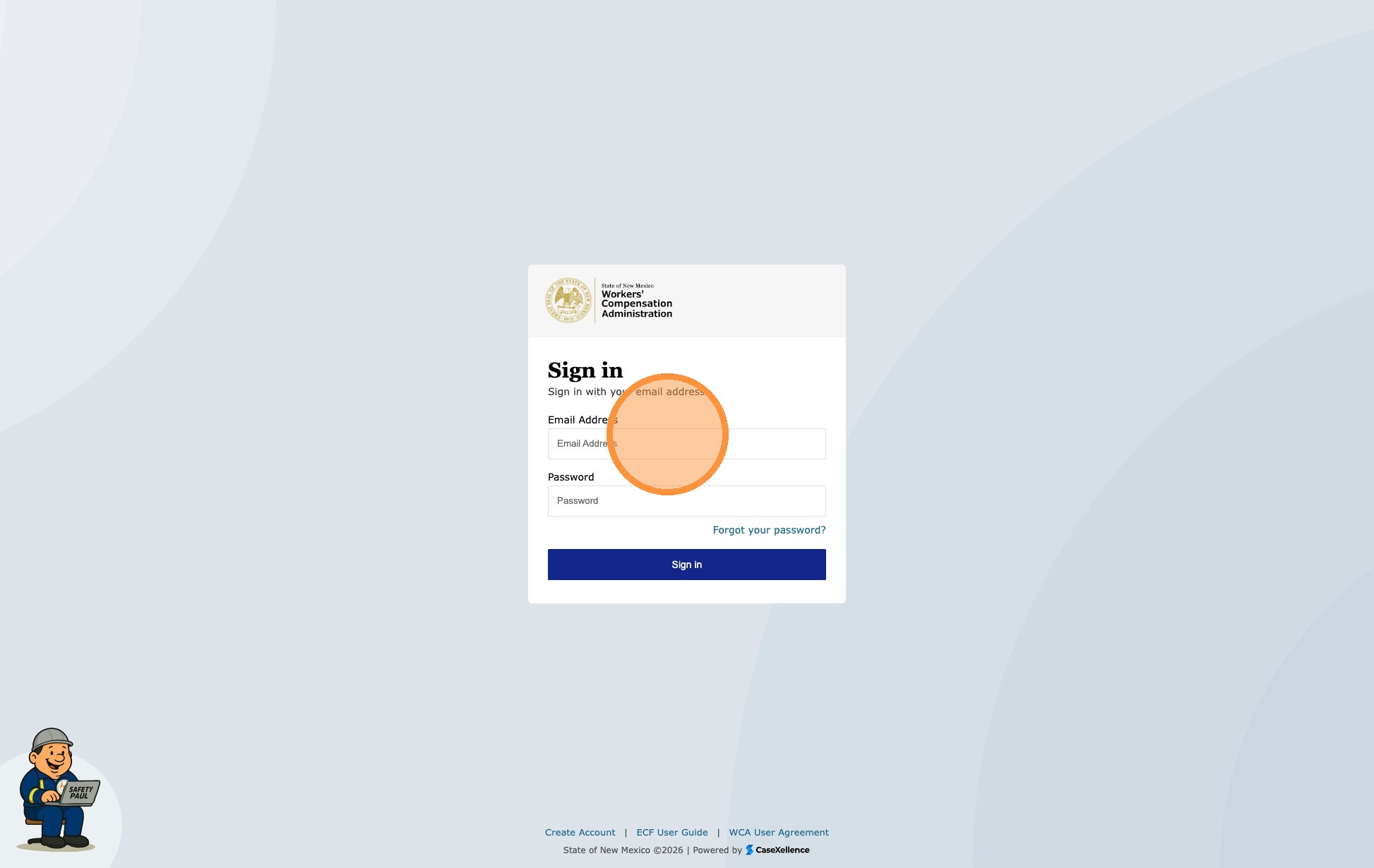
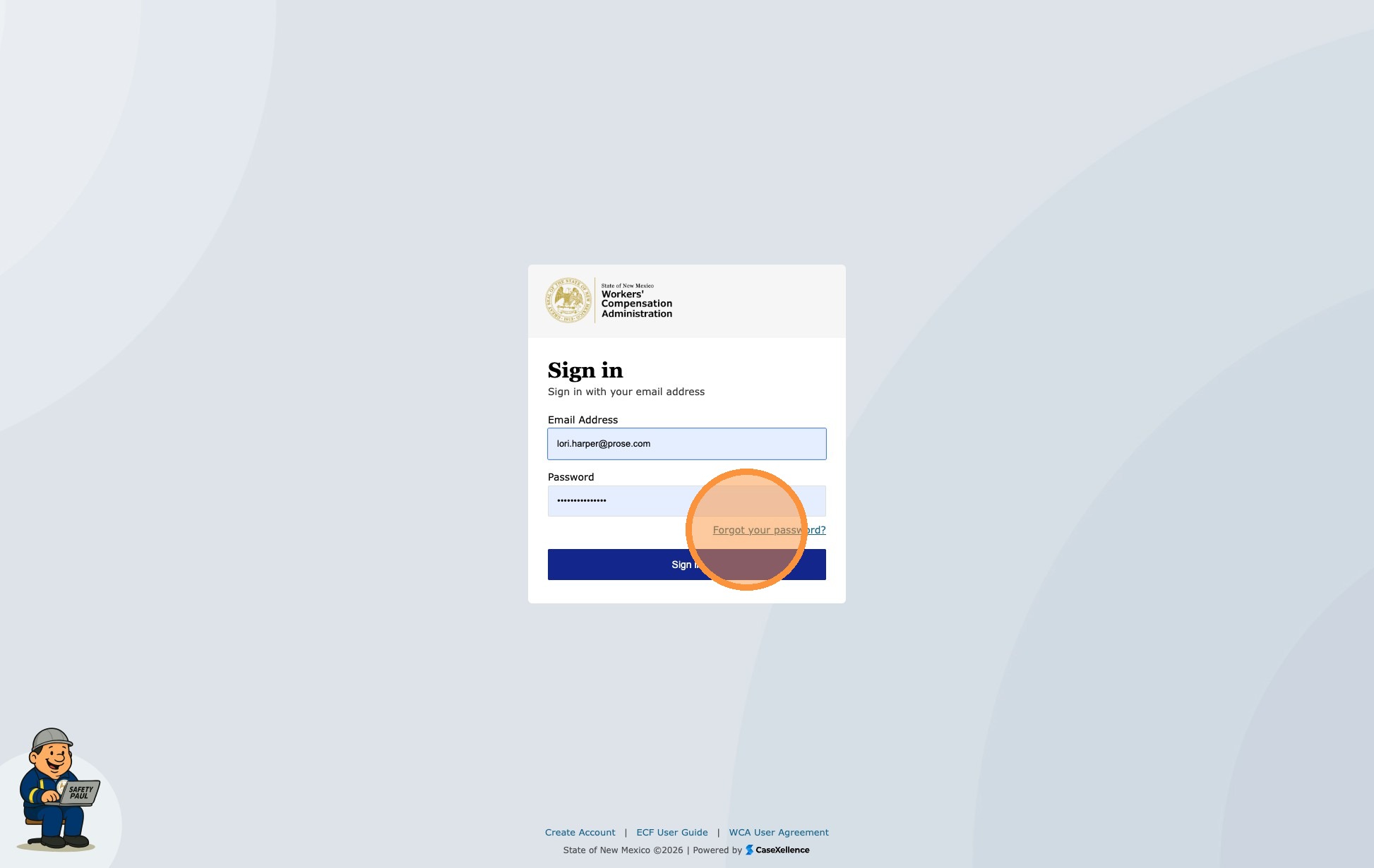
Navigation: ECF Portal Login Page → Forgot your password?
1. Start the password reset
- Open the ECF portal login page.
- Click Forgot your password? below the sign-in fields.
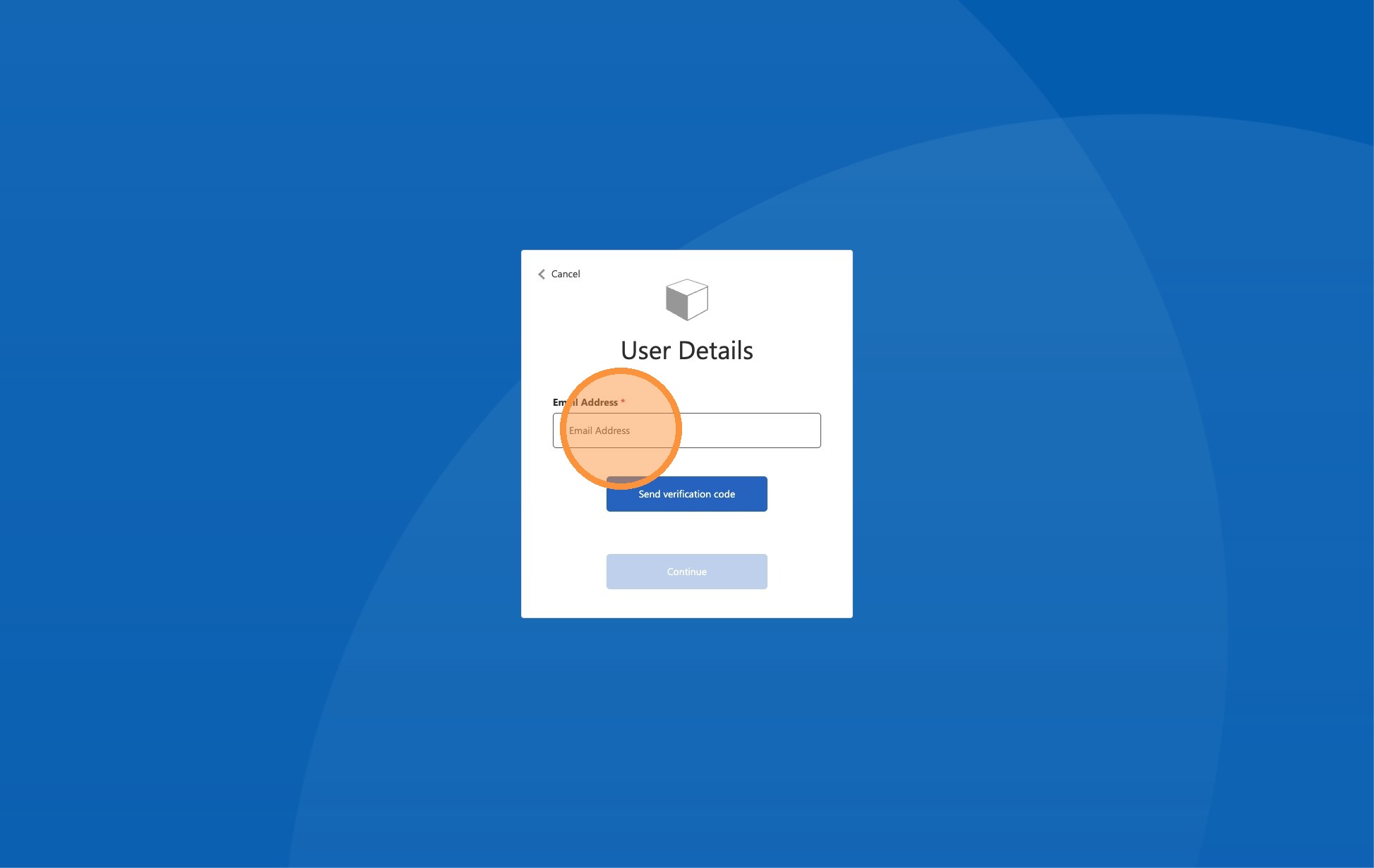
2. Enter your email address
- Enter the email address associated with your ECF account.
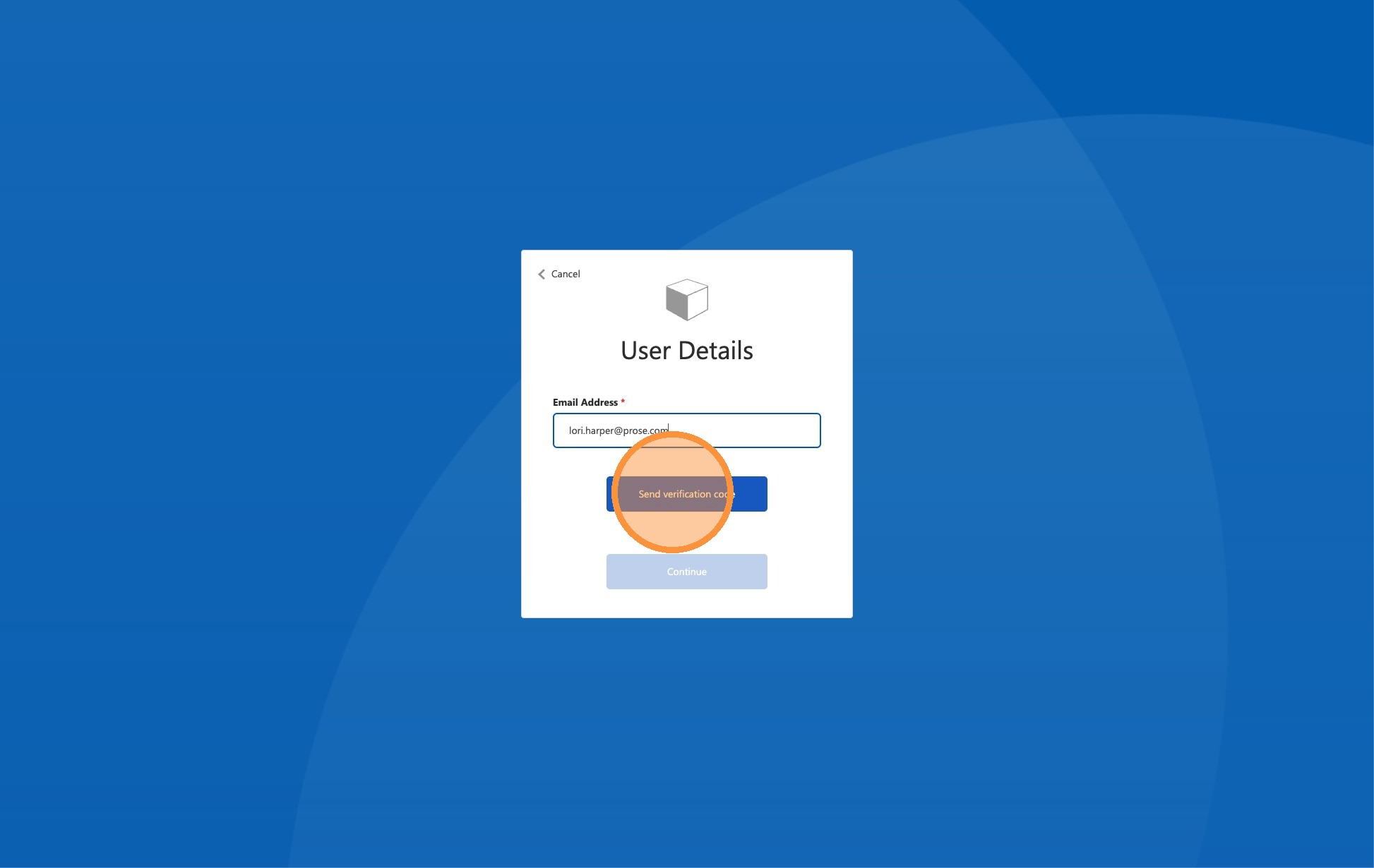
3. Request a verification code
- Click Send verification code. Then check your email for the code.
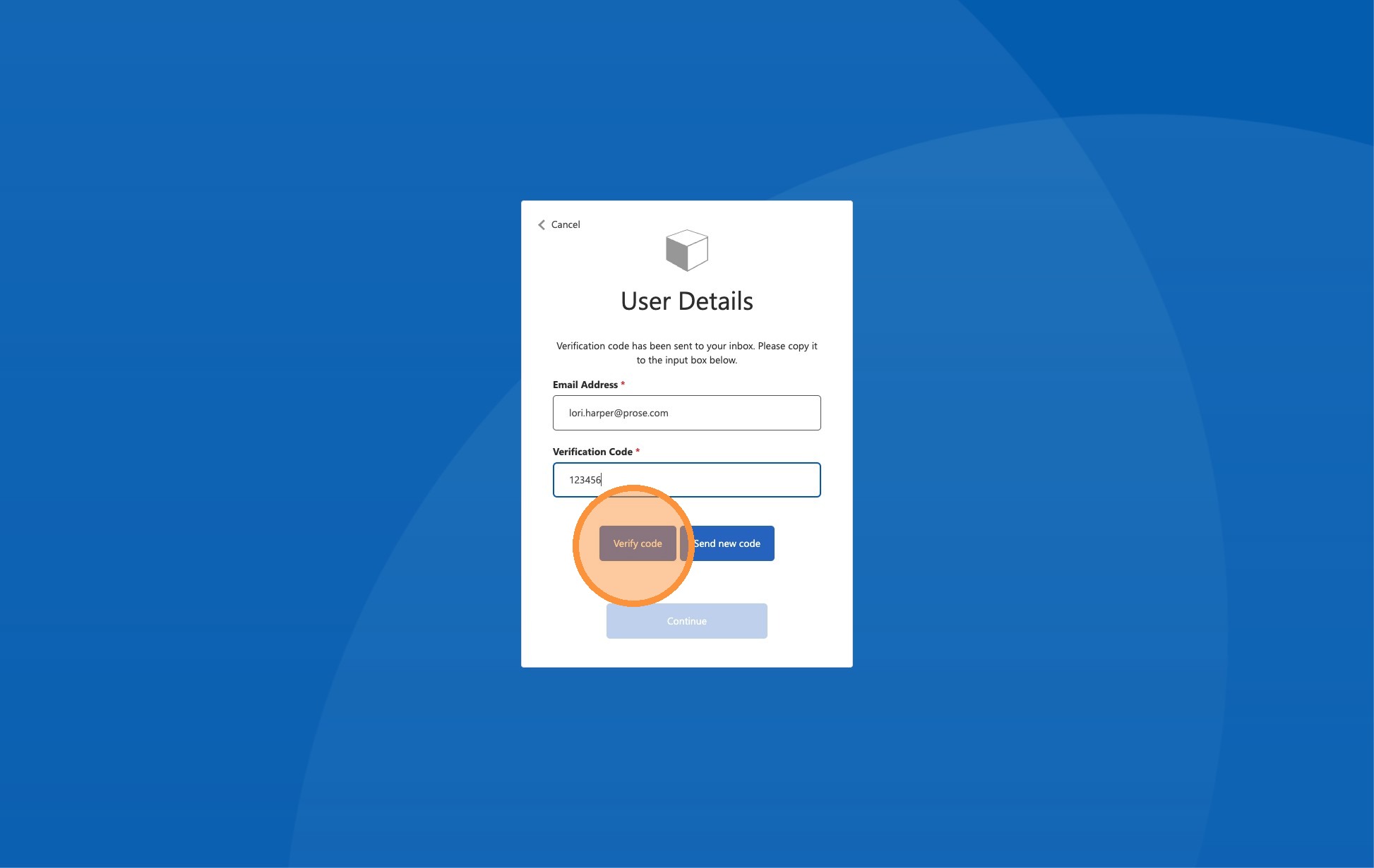
4. Enter the code and verify
- Enter the verification code from the email, then click Verify code.
5. Set a new password and sign in
- Complete the password reset steps on the screen. You will then be redirected to the login page. Sign in using your email address and new password.
If you do not receive the reset email within a few minutes, check your spam or junk folder. If it still does not arrive, contact the WCA Clerk's Office to confirm the email address on your account.
See also: Contact Us · User Registration — Attorney or Representative
Portions of this user guide were produced with assistance from artificial intelligence tools; all content was reviewed for accuracy before publication.